
Tutorial 1Tutorial 2Tutorial 3Tutorial 4
“If you spend too much time thinking about a thing, you’ll never get it done” – Bruce Lee
Welcome to Ultimate VBA Tutorial Part 2 – Reading dynamic data. If you haven’t seen part 1 then you can find it here.
In this tutorial, you will learn how to deal with ranges which may be different in size each time the code runs.
The focus of this tutorial series is on learning by doing. All the tutorials are packed with coding examples and activities to help you on your way. You will find an assignment and a quiz at the end of each one. You can use these to test your knowledge and see how much you have learned.
Learning Outcomes
When you finish this tutorial you will be able to:
- Write code that can handle dynamic ranges.
- Use variables with Ranges and Cells.
- Decide when to use Range and when to use Cells.
- Use the Offset property to count cells from the current cell.
- Declare and use a Range variable to make your code more readable.
- Easily return a rectangular range of cells using the CurrentRegion.
References
The Complete Guide to Ranges and Cells in Excel VBA
Making Your Code Flexible
In the first Tutorial, we looked at cells and ranges and how to read and write values between them.
All of what we did in that tutorial involved static cells. In other words, each time you run the code it will use the same cells.
For example, the code below will write the number 7 to cell A1 everytime we run the code
Sheet1.Range("A1") = 7
When you create projects in the real world you will need your code to be more flexible.
Imagine you create a project to read sales data each day. It is very unlikely that you would have the same number of records each time you run your code. Therefore you want your code to be able to handle whatever number of records there is.
To deal with these scenarios we need to know about Range, Cells, CurrentRegion, Offset and some other useful concepts.
Let’s get started with one of the most common tasks. Using a variable with Range.
Using a Variable with Range
In the previous tutorial we have written values to cells using code like this
Sheet1.Range("A1") = 1
This code will always write the value 1 to cell A1.
If we want to determine which cell to use, when the code is running, we use a variable.
We can easily use a variable with the Range property as the following example shows
Dim row As Long
row = 6

Sheet1.Range("A" & row) = 1
In this example we set row to be 6. In a real-world project the value would be different each time. We could get if from user input, calculations, cell values and so on.
Here are some more examples of using a variable with the Range property
Sub RangeExamples()

    Dim row As Long, result As Long

    ' Write 99 to B4
    row = 4
    Sheet1.Range("B" & row) = 99

    ' Print the value of C5 to Immediate Window(Ctrl + G)
    row = 5
    result = Sheet1.Range("C" & row)
    Debug.Print result

    ' Copy E10 to D10
    row = 10
    Sheet1.Range("D" & row) = Sheet1.Range("E" & row)

End Sub
When we use a variable we can get the value from user input, calculations, cell values etc. For example, we can ask the user to select the row.
We use the InputBox in the example below to get input from the user. You can read more about the InputBox here.
Sub GetValueFromUser()

    Dim row As Long
    row = InputBox("Please enter the row to write to ")

    ' Writes to the cell in the user selected row
    Sheet1.Range("A" & row) = 1

End Sub
In the example above the user enters the row number. The code then writes the value 1 to this row in column A.
This next example is similar. This time we read the value from the cell selected by the user. When trying this example, you should place different values in the cells C1 to C5 so it is obvious which one was selected.
Sub ReadUserRow()

    Dim row As Long
    row = InputBox("Please enter the row of column C to read from... ")

    ' Displays a message box to the user
    MsgBox "The value in the selected row is " & Sheet1.Range("C" & row)

End Sub
The MsgBox function simply displays the given text in a dialog to the user(see more about the message box here). Notice that we use the ampersand operator & to add the text and the value together to create one text string. This is similar to how we use the ampersand operator with Range.
Activity 1
- Place a number between 1 and 10 in cell A1.
- Create a sub and call it Act1.
- Add code to read the value from A1 to a variable called Row.
- Add code to write the value 99 to Column B using the variable Row to set the row.
- Run the code using different values in cell A1 and see how the row changes.
Sub Act1()

    Dim row As Long
    row = Sheet1.Range("A1")

    Sheet1.Range("B" & row) = 99

End Sub
End of Activity 1
Using Range for Multiple Cells
We have seen that the ampersand operator & is used to build the string for the Range.
This sign is used in VBA to add two pieces of text together. If one of the items is numeric then VBA will automatically convert it to text.
Here are some examples
Sub UsingAmpersand()

    ' Prints A10
    Debug.Print "A" & "10"

    ' Prints A10
    Debug.Print "A" & 10

    ' Prints A10B
    Debug.Print "A" & 10 & "B"

    ' Prints A1122Apple33
    Debug.Print "A" & 11 & 22 & "Apple" & 33

End Sub
If we want to build a more complex range like “A2:D11” we do it in a similar way e.g.
Range("A" & 2 & ":D" & 11)
The code below shows an example of this
Sub MultiCells()

    Dim row As Long, rowEnd As Long
    row = 6
    rowEnd = 10

    ' Gives range "A6:B6"
    Sheet1.Range("A" & row & ":B" & row) = 55

    ' Gives range "C6:D10"
    Sheet1.Range("C" & row & ":D" & rowEnd) = 77

End Sub
Activity 2
- Create a new sub and call it Act2.
- Create two Long variables called RowStart and RowEnd.
- Set the value of RowStart to be 2 and RowEnd to be 10.
- Create a String variable called Column.
- Use the InputBox function to ask the user for the column and place the result in the Column variable.
- Using the Range property of Sheet1, write the value 99 to the range from the RowStart and RowEnd in the user column. In other words if the user inputs “C” then build the range C2:C10 .
Sub Act2()

    ' Set the row variables
    Dim rowStart As Long, rowEnd As Long
    rowStart = 2
    rowEnd = 10

    ' Get user input
    Dim column As String
    column = InputBox("Please enter the column letter ")

    ' Build the range and write the value
    Sheet1.Range(column & rowStart & ":" & column & rowEnd) = 99

End Sub
End of Activity 2
The Cells Property
So far we have been using the Range property to reference cells.
The Range property has one major drawback. It cannot use a number for a Column.
This means we cannot pass the column number to Range as it will give an error
Sub GetColFromUser()

    Dim column As Long
    column = InputBox("Please enter the column number to write to ")

    ' ERROR - Range cannot take number as a column
    Sheet1.Range(column & 1) = 1

End Sub
The worksheet has another property called Cells.
There are two main differences between the Cells and Range properties
- Cells has two parameters – the row number and the column number. Range has one parameter but can only use a letter for the column.
- Cells returns a range of one cell only. Range can return a range of one or more cells.
We can use the Cells property to read or write from a cell just like we did with the Range property.
The code below shows the equivalent statements for both Cells and Range properties.
Sub CellsAndRange()

    ' Write to A1
    Sheet1.Cells(1, 1) = 5
    Sheet1.Range("A1") = 5

    ' A2
    Sheet1.Cells(2, 1) = 67
    Sheet1.Range("A2") = 67

    ' A5
    Sheet1.Cells(5, 1) = "John"
    Sheet1.Cells("A5") = "John"

    ' B3
    Sheet1.Cells(3, 2) = 78.99
    Sheet1.Cells("B3") = 78.99

    ' Copy C5 to E11
    Sheet1.Cells(11, 5) = Sheet1.Cells(5, 3)
    Sheet1.Range("E11") = Sheet1.Cells("C5")

    Dim total As Long
    ' read from F3
    total = Sheet1.Cells(3, 6)
    total = Sheet1.Range("F3")

End Sub
Activity 3
- Open a new workbook and place values in cell D8 and C5 in Sheet1.
- Add a worksheet called Sheet2.
- Create a Sub called Act3 and add code to do the following:
- Using the Cells property, write the value 9.99 to cell B3.
- Using the Cells property, copy value from D8 to cell C2.
- Using the Cells property, copy value from C5 on Sheet1 to A8 on Sheet2.
Sub Act3()

    ' Cell B3
    Sheet1.Cells(3, 2) = 9.99

    ' Copy from D8 to C2
    Sheet1.Cells(2, 3) = Sheet1.Cells(8, 4)

    ' Copy from C5 on sheet1 to A8 on sheet2
    sheet2.Cells(8, 1) = Sheet1.Cells(5, 3)

End Sub
End of Activity 3
Using Variables With Cells
We must use the Cells property when the column is going to be a number. As we have seen, the Range cannot deal with a numeric column.
In the following example, we take the number of the column from the user. We then write a value to row 1 in this column.
Sub GetColFromUser()

    Dim column As Long
    column = InputBox("Please enter the column number to write to ")

    Sheet1.Cells(1, column) = 55

End Sub
We will try this for ourselves in the next activity.
Activity 4
- Place a number representing a column in cell A1.
- Create a Sub called Act4 and add code to do the following:
- Add a variable called Column.
- Read from cell A1 to the variable Column.
- Write the value 100 to the cell using 1 as the row and the Column variable as the column for the cell.
- Change the values in cell A1 and see how the output changes.
Note: If cell A1 has a value less than one you will get the “Application-defined or object-defined” error. If cell A1 has text characters you will get a “Type Mismatch” Error.
Sub Act4()

    Dim Column As Long
    Column = Sheet1.Range("A1")

    Sheet1.Cells(1, Column) = 100

End Sub
End of Activity 4
Using the Address Property
When you are using variables you want to make sure that you have the correct range.
Imagine there was an easy way to figure out the address your range was referring to.
Range has a property that does just that. This property is the Address property.
Before you write a Range it can be useful to check the address first.
In the following example, we print out the address of the Cell
Sub CheckAddress()

    Dim row As Long, col As Long
    row = 4
    col = 3

    ' Prints $C$4 to the Immediate Window(Ctrl + G)
    Debug.Print Sheet1.Cells(row, col).Address

End Sub
When we are happy that the code is correct we can then update the code
Sheet1.Cells(row, col) = 56
We don’t need to do this for every line of code we write. However it can be useful if the range code is complex or if our code is accessing the wrong cell.
We can also use the Address property in the Watch Window which we will see in a later tutorial.
Activity 5
- Create a Sub called Act5 and write code to do the following
- Get the row number from the user.
- The cell you will use is a column A and the row is from the row number.
- Write the value 55 to this cell.
- Print the address of this cell using the Address property.
Sub Act5()

    Dim row As Long
    row = InputBox("Please enter the row")

    ' Write the value 55 to the cell
    Sheet1.Range("A" & row) = 55

    ' Print the address of the cell
    Debug.Print Sheet1.Range("A" & row).Address

End Sub
End of Activity 5
Dealing With Multiple Cells
As we saw, the Cells property can only return one cell.
If we are dealing with a range of cells which have variable columns then neither the Range nor Cells properties are good enough on their own.
- The Cells property can only return one cell.
- The Range property cannot handle numeric columns.
So how do we handle a range of cells where the column is a variable?
We use the Cells property for the first and last cells of the range. We then pass this to the Range property.
The following code shows an example of this
Sub RangeCellsBasic()

    ' The range A1 to E4
    Sheet1.Range(Sheet1.Cells(1, 1), Sheet1.Cells(4, 5)) = 88

    ' The range G1 to G10
    Dim col As Long
    col = 7
    Sheet1.Range(Sheet1.Cells(1, col), Sheet1.Cells(10, col)) = 99

End Sub
In the following example we use variables
Sub RangesCells()

    Dim Startrow As Long, Endrow As Long
    Dim Startcol As Long, Endcol As Long

    Startrow = 3
    Startcol = 2
    Endrow = 10
    Endcol = 5


    Debug.Print Sheet1.Range(Sheet1.Cells(Startrow, Startcol) _
            , Sheet1.Cells(Endrow, Endcol)).Address

    ' B3 to E10
    Sheet1.Range(Sheet1.Cells(Startrow, Startcol) _
            , Sheet1.Cells(Endrow, Endcol)).Interior.Color = rgbLavender

End Sub
The last line above refers to Sheet1 three times. This makes it a good candidate for using the With statement which we saw in the last tutorial.
With Sheet1

    Debug.Print .Range(.Cells(Startrow, Startcol) _
            , .Cells(Endrow, Endcol)).Address

    ' B3 to E10
    .Range(.Cells(Startrow, Startcol) _
            , .Cells(Endrow, Endcol)).Interior.Color = rgbLavender

End With
We will see in the next section how we can use a range variable to make code like this much neater.
Activity 6
-
- Add values to the Cells A1 to D2 as shown in the screenshot

- Create a Sub called Act6 and write code to do the following.
- Create a Long variable for each of the headings.
- Read the values in row 2 into the appropriate variables based on their heading e.g. A2 is read into RowStart.
- Use the four variables to create a Range.
- Print the address of the Range using Range(Cells(), Cells()) to build the range.
- Write the value 59.99 to each cell in that range using the same method to build the range.
Sub Act6()

    Dim Startrow As Long, Endrow As Long
    Dim Startcol As Long, Endcol As Long

    Startrow = Sheet1.Range("A2")
    Startcol = Sheet1.Range("B2")
    Endrow = Sheet1.Range("C2")
    Endcol = Sheet1.Range("D2")

    With Sheet1

        ' Print address D3:Y11
        Debug.Print .Range(.Cells(Startrow, Startcol), .Cells(Endrow, Endcol)).Address

        ' Write value
        .Range(.Cells(Startrow, Startcol), .Cells(Endrow, Endcol)) = 59.99

    End With

End Sub
End of Activity 6
Summary of Range and Cells
This section gives a quick overview of the Range and Cells properties
- Range can use a numeric variable for row only.
- Cells can use a numeric variable for row and column but can only refer to one Cell.
The table below shows an overview of when to use Ranges and Cells. After a while it will become second nature which one to use.
| Cells | Row | Column | |
|---|---|---|---|
| one | fixed | fixed | Sheet1.Range("A1") = 66 Sheet1.Cells(1, 1) = 44 |
| one | variable | fixed | Sheet1.Range("A" & row) = 66 Sheet1.Cells(row, 1) = 44 |
| one | fixed variable | variable variable | Sheet1.Cells(1, Column) = 33 sheet1.Cells(row, Column) = 67 |
| multiple | fixed | fixed | Sheet1.Range("A1:B3") = 66 |
| mutiple | variable | fixed | Sheet1.Range("A" & row & ":D" & row) = 19.99 |
| multiple | variable | variable | With Sheet1 .Range(.Cells(row1, column1), .Cells(row2, column2)) = 59.99 End With |
Later we will look at the CurrentRegion property. This makes our life easier by automatically building the range for us.
Using Range Variables
We have already looked at using variables such as Long, Currency and String. These are known as basic types.
Sometimes it is very useful to have a Range variable. We use these variables to store a range. This makes it easy if we wish to refer to it again. It also makes our code much more readable.
To declare a Range variable we use the Dim statement just like for the basic type variables.
Dim rg As Range
Once we declare the variable we need to assign to a Range. We do this with an assignment line.
Using Let and Set
Let’s recap for a moment. Remember that we assigned values to basic variables like this
Dim total As Long
total = 7
Originally in the BASIC language the assignment line used the Let keyword and was written like this
Let total = 7
It is still valid to use Let keyword in VBA but it is unnecessary.
When we assign variables other than basic types we use the Set keyword. Examples of these types are Range, Worksheet, Workbook, Chart and Collection.
Note: For a more advanced look at Set you can check out How Set Works.
We use Set to assign a range variable as the following example shows
Dim rg As Range
Set rg = Sheet1.Range("A1:A6")
We can then use the range variable just like we would use a normal range
Sub UsingRangeVariable()

    Dim rg As Range
    Set rg = Sheet1.Range("A1:A6")

    ' Set value of cells in range
    rg = 55

    ' Copy from range
    Sheet1.Range("B1:B6") = rg.Value

    ' Set the fill color to be light blue
    rg.Interior.Color = rgbLightBlue

End Sub
In the last activity we used the range twice – see the code below
With Sheet1

    ' Print address
    Debug.Print .Range(.Cells(Startrow, Startcol) _
                , .Cells(Endrow, Endcol)).Address

    ' Write value
    .Range(.Cells(Startrow, Startcol) _
                , .Cells(Endrow, Endcol)) = 59.99

End With
If we use a variable here it means that we only need to get the range once. This also makes our code neater and easier to read.
' Store the range in a variable
Dim rg As Range
Set rg = Sheet1.Range(Sheet1.Cells(Startrow, Startcol) _
    , Sheet1.Cells(Endrow, Endcol))

' Print address
Debug.Print rg.Address

' Write value to range
rg = 59.99
Activity 7
- Place data in the cells A1 to A10.
- Create a Sub called Act7 and write code to do the following
- Declare two range variables rgSrc and rgDst.
- Assign rgSrc to range A1:A10.
- Assign rgDst to range B11:B20.
- Print the address of both ranges.
- Copy data in the source range to the destination range.
Sub Act7()

    Dim rgSrc As Range, rgDst As Range

    ' Assign the source address
    Set rgSrc = Sheet1.Range("A1:A10")

    ' Assign the destination address
    Set rgDst = Sheet1.Range("B11:B20")

    ' Print the addresses of both ranges
    Debug.Print rgSrc.Address, rgDst.Address

    ' Copy the data
    rgDst.Value = rgSrc.Value

End Sub
End of Activity 7
The Last Cell With Data
When we are dealing with data on a worksheet we often need to find the last row or column with data. We can then use this to build the range.
Using the CurrentRegion property saves us having to do this if the data is well formed – i.e. in a rectangular shape like a group of records.
That said, it is important to know how to build the range as you sometimes you will need to use it. You may also come across in legacy code.
We can get the last cell with data like this
Sub GetLastCell()

    Dim rg As Range
    Set rg = Sheet1.Cells(Sheet1.Rows.Count, 1).End(xlUp)

End Sub
The code starts at the last cell in Column A and moves up until it finds a cell with data.
This is the same as manually clicking on the last cell in column A and pressing Ctrl + Up Arrow.
We don’t search from the top down as this would stop at the cell before the first blank cell.
Don’t worry if you find this line complex. It is always written the same way. The only thing you need to change is the worksheet name and the column number.
You can also write the line using Range. It does exactly the same thing
Set rg = Sheet1.Range("A" & Sheet1.Rows.Count).End(xlUp)
We can get the last Column with data in a similar way
Set rg = Sheet1.Cells(1, Sheet1.Columns.Count).End(xlToLeft)
If we want to get the row number or column number from the last cell, we can do so like this
Sub PrintRowNumber()

    Dim rg As Range
    Set rg = Sheet1.Range("A" & Sheet1.Rows.Count).End(xlUp)

    ' Print row number
    Debug.Print "Row number is " & rg.row

    ' Print cell number
    Debug.Print "Column number is " & rg.Column

End Sub
Let’s use what we have learned so far in the next activity.
Activity 8
-
- Place values in the cells A1:A5 of Sheet1. We will print the address to the Immediate Window.
- Copy the following code
Sub GetLastCellInColum()

    Dim rg As Range
    Set rg = Sheet1.Range("A" & Sheet1.Rows.Count).End(xlUp)

    ' Print the address to the Immediate Window(Ctrl + G)
    Debug.Print "The last cell is: "; rg.Address

End Sub
- Run the code and it will print A5 to the Immediate Window.
- Place data in other cells in the column A.
- Run the code each time and check the result. The code will print the address of the last cell with data in the column.
End of Activity 8
The last activity shows flexible our code can be. No matter what is the last cell our code will run without any changes.
Now that we are seeing how powerful that flexible code is, let’s look at a super-efficient way of dealing with ranges.
The CurrentRegion Property
CurrentRegion is a powerful property of range that returns a rectangular range of data. It returns a range of all the adjacent cells to the given range.
In the screenshot below you can see the two current regions. I have added borders to make the current regions clear.

A row or column of blank cells signifies the end of a current region.
If we take any range of cells within the border and use CurrentRegion, we will get back the range of cells in the entire area.
For example
Range(“B3”).CurrentRegion will return the range B3:D14
Range(“D14”).CurrentRegion will return the range B3:D14
Range(“C8:C9”).CurrentRegion will return the range B3:D14
and so on.
We can store the range from the CurrentRegion in a Range variable. This makes our code more readable and means were are not asking Excel to recalculate the Current Region each time we need the range.
' Current region will return B3:D14 from above example
Dim rg As Range
Set rg = Sheet1("B3").CurrentRegion
The CurrentRegion property is easy to use but it is important to make sure that you really understand it. The last two steps in the next activity are very important so make sure that you don’t skip them.
Activity 9
- Place data in the cells C2 to F7.
- Create a Sub called Act9 and write code to do the following
- Declare a range variable.
- Assign the range variable to the CurrentRegion of C4.
- Print the address of this range.
- Assign the range variable to the CurrentRegion of A1.
- Print the address of this range.
- Try some more examples with the ranges both inside and outside the data range and check the results.
- Add data to cells around the data and run the code again. This will help you see exactly what VBA considers the CurrentRegion.
Sub Act9()

    Dim rg As Range

    Set rg = Sheet1.Range("C4").CurrentRegion
    Debug.Print rg.Address

    Set rg = Sheet1.Range("A1").CurrentRegion
    Debug.Print rg.Address

End Sub
End of Activity 9
The Offset Property
Range has a property called Offset. This returns the range that is a given number of cells from the current range.
Offset takes two parameters
- The number of rows to count.
- The number of columns to count.
These values can be zero or minus. The following table shows the result of positive, zero and negative parameters
| Value | Row | Column |
|---|---|---|
| 0 | Same row | Same Column |
| 1 | Count one cell down | Count one cell right |
| -1 | Count one cell up | Count one cell left |
| 2 | Count two cells down | Count two cells right |
| -2 | Count two cells up | Count two cells left |
The following code shows a basic example of using the Offset property.
Sub OffsetBasicExample()

    Dim rg As Range

    ' Get the offset of two rows from B2 and place
    ' the new range in rg
    Set rg = Sheet1.Range("B2").Offset(2, 0)

End Sub
Just like the Current Region property, the Offset property returns a new range. We can then use this range how we like.
The code shows some examples of using Offset from cell B2. The output of this code is
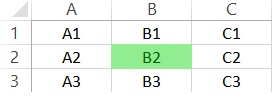
Public Sub UsingOffset()

    Dim rg As Range
    Set rg = Sheet1.Range("B2")

    ' Hightlight this cell
    rg.Interior.Color = rgbLightGreen

    ' Write to B2 - no offset
    rg.Offset(0, 0) = "B2"

    ' Write to A1 - 1 column left and 1 row up
    rg.Offset(-1, -1) = "A1"

    ' Write to B1 - 1 row up
    rg.Offset(-1, 0) = "B1"

    ' Write to C1 - 1 column to the right and 1 row up
    rg.Offset(-1, 1) = "C1"

    ' Write to A2 - 1 column left
    rg.Offset(0, -1) = "A2"

    ' Write to C2 - 1 column right
    rg.Offset(0, 1) = "C2"

    ' Write to A3 - 1 column left and 1 row down
    rg.Offset(1, -1) = "A3"

    ' Write to B3 - 1 row down
    rg.Offset(1, 0) = "B3"

    ' Write to C3 - 1 column right and 1 row down
    rg.Offset(1, 1) = "C3"

End Sub
In these examples, we only count one cell. However, we can count as many row and columns as we like as long as we end up with a valid cell number.
The following code will give the “Application-defined or object-defined error” as it would result in cell A0 which is obviously not valid.
Dim rg As Range
Set rg = Sheet1.Range("A1").Offset(-1, 0)
In the examples so far, we have had a range of one cell but we can move a range of any size.
Public Sub OffsetbiggerRange()

    Dim rg As Range
    Set rg = Sheet1.Range("A1:D4").Offset(4, 7)

    ' Prints $H$5:$K$8
    Debug.Print rg.Address

End Sub
The Offset property can be useful in a number of scenarios. For example, imagine we want to find that last row with data in column A and then get the value in the adjacent cell in column C.
Activity 10
- On a blank worksheet, place the text John in the Cell A10 and the text New York in the cell C10.
- Create a sub called Act10 and write code to do the following:
- Get the last cell with data from column A.
- Print the city(in Column C) from this row to the Immediate Window.
- Place the text Jane in the Cell A12 and the text Paris in the cell C12.
- Run the code again without any changes. It should now print out Paris to the Immediate Window.
Sub Act10()

    Dim rg As Range
    Set rg = Sheet1.Range("A" & Sheet1.Rows.Count).End(xlUp)

    Debug.Print rg.Offset(0, 2)

End Sub
End of Activity 10
Tutorial Assignment

We’ve covered a lot of stuff in this tutorial. So let’s put it all together in the following assignment
Tutorial Assignment
I have created a simple workbook for this assignment.
You can download it using this link.
Open the assignment workbook. You can place your code here
- Create a sub and call it Assignment2A.
- Get the number of the last row with data and store it in a Long variable called Lastrow.
- Get the number of the last column with data and store it in a Long variable called Lastcolumn.
- Use these two variables to get the range of data. The starting cell of the range will be C2.
- Print the address of the range in the Immediate Window.
- Set the background color of the range to be Aqua.
- Print out address of the range one row up and three columns to the right of this range.
- Copy the sub you have created and call it Assignment2B.
- Change the code so that it uses the CurrentRegion property to get the range. This time set the color of the range to be light green.
Sub Assignment2A()

    ' Declare the variables
    Dim firstRow As Long, firstCol As Long
    Dim LastRow As Long, LastCol As Long

    ' Set the first values
    firstRow = 2
    firstCol = 3

    ' Declare the range
    Dim rg As Range

    With Sheet1
        ' Get the last row with data and the last column with data
        LastRow = .Cells(.Rows.Count, firstCol).End(xlUp).Row
        LastCol = .Cells(firstRow, .Columns.Count).End(xlToLeft).Column

        ' Assign the range
        Set rg = .Range(.Cells(firstRow, firstCol), .Cells(LastRow, LastCol))

        ' Print the address
        Debug.Print rg.Address

        ' Set the background to be Aqua
        rg.Interior.Color = rgbAqua

    End With

End Sub
Sub Assignment2B()

    ' Declare the range
    Dim rg As Range

    With Sheet1

        ' Assign the range
        Set rg = Sheet1.Range("E2").CurrentRegion

        ' Print the address
        Debug.Print rg.Address

        ' Set the background to be Light Green
        rg.Interior.Color = rgbLightGreen

        Dim rgOffset As Range
        Set rgOffset = rg.Offset(-1, 3)

        Debug.Print rgOffset.Address

    End With

End Sub
End of Tutorial Assignment
Tutorial Quiz

The following quiz is based on what we have covered this tutorial.
-
- Which operator allows us to use a row variable with the Range property?
The ampersand operator(&).
-
- What does this code do?
row = 5
result = Sheet1.Range("C" & row)
It places the value from C5 in the variable result.
- Say we have the row variables RowStart and RowEnd containing the starting and ending rows respectively. How do we write the value 55 to the entire range where the range is as follows:The first cell of the range is column A and row RowStart.
The last cell of the range is Column A and row RowEnd.Sheet1.Range("A" & RowStart & ":A" & RowEnd) = 55
- What are the two main differences between Cells property and the Range property?
- Cells has two parameters – the row number and the column number. Range has one parameter but can only use a letter for the column.
- Cells returns a range of one cell only. Range can return a range of one or more cells.
- For what two circumstances can you use both the Range property and the Cells property?
-
- When the range is one cell and the row and column are fixed.
Sheet1.Cells(1, 1) = 5 Sheet1.Range("A1") = 5-
- When the range is one cell, the column is fixed and the row is variable.
Sheet1.Cells(row, 1) = 5 Sheet1.Range("A" & row) = 5-
- How do we print the range of the following code to the Immediate Window?
Sheet1.Cells(row, col)
Debug.Print Sheet1.Cells(row, col).Address-
- When do we use code like the following with two Cells properties passed as parameters to a Range property?
Sheet1.Range(Sheet1.Cells(Startrow, Startcol) _
                  , Sheet1.Cells(Endrow, Endcol)) = 59.99
When the range is more than one cell and requires numeric(i.e. variable) columns-
- What is the optional keyword for assigning a basic data type like String, Long or Currency?
Dim total As Long
' what optional keyword can we use here?
total = 5
What is the mandatory keyword for assigning a non-basic type like Range, Worksheet or Workbook?
Dim rg As Range
' what mandatory keyword must we use here?
??? rg = sheet1.Range("A1:A5")
- What is the optional keyword for assigning a basic data type like String, Long or Currency?
For Basic type we use the Let keywordDim total As Long Let total = 5
For non-basic types we use the Set keyword
Dim rg As Range
Set rg = Sheet1.Range("A1:A5")
-
- Suppose we have data starting in cell A1. How do we get the range of all the adjacent cells with data?
Dim rg As Range
Set rg = Sheet1.Range("A1").???
- Suppose we have data starting in cell A1. How do we get the range of all the adjacent cells with data?
Dim rg As Range
Set rg = Sheet1.Range("A1").CurrentRegion
-
- How do we get the last row in Column F on Sheet2?
Dim LastRow As Long
LastRow = sheet2.Range("F" & sheet2.Rows.Count).End(xlUp).row
OR
Dim LastRow As Long
LastRow = sheet2.Cells(sheet2.Rows.Count, 6).End(xlUp).row
A Recap of the Tutorial
Let’s have a quick recap of the tutorial so it’s clear in your mind.
- We saw that variables to make our code flexible and help us deal with data of different sizes.
- We saw that the Range and Cells property work with variables and each has different uses.
- We saw how to use Range variables.
- We saw how to get the last cell with data in a row or column.
- We saw how the CurrentRegion property can get a range of rectangular data.
- We saw how the Offset property can count from the current range.
Conclusion of Tutorial
Congratulations on finishing this tutorial. If you have completed the activities, assignment and the quiz then you will have increased your VBA knowledge considerably. This will help as we move on to the next tutorial.
In the next tutorial, we are going to deal with loops. If VBA had a superpower then that power would be the loop. Using loops allows us to easily read through large amounts of data in miliseconds. See you in Tutorial 3.
-

Love the course. I do think it would be a good idea to point out that in the final part of the code that finds the last row of a range “.End(xlUp)”, the l is an L not the number 1. They look identical in the code font and originally gave me errors.
Hi Martin,
Glad you like the course. That is a good point – it can be confusing.
There is a lot of enums that use xl as the prefix. The idea is that xl is short for Excel.
Paul
Hello Paul:
Could you give me some code to change the name of a range. For example, if the original range name is boy, I would like to change that name to girl and retain the same range address. Your help would be greatly appreciated.
Doug Watson
You can do this Doug:
ThisWorkbook.Names(“Boy”).Name = “Girl”
Hi Paul:
That looked like a great solution to my problem. Unfortunately, I got Run-time Error “9”, Subscript out of range. My code is below.
Sub record_your_word()
Dim V1 As Variant
Dim V2 As Variant
ThisWorkbook.Names(“car_models”).Name = “V1”
ThisWorkbook.Names(“car_models2”).Name = “V2”
Call remove_double_letters
End Sub
I also tried String and Name as variable types, but neither worked. Is there a way to fix this? Thanks
Doug Watson
Hi,
This error occurs because there is no named defined name called “car_models”.
I’ve sent you an email.
Paul
Extremely helpful in order to improve drastically from basic recorded Macros.
Glad you like it Jacques.